Downloading your clips (one by one or in bulk)
Exporting and downloading are different steps. And there are two clocks running: the rendered file's, and the submission's.
Updated July 26, 2026Three similar-sounding actions with different effects:
- Export: sends the clip to the render queue, which produces the final file with subtitles and template.
- Download: saves a clip that has already been rendered to your device.
- Publish: sends it straight to a connected social account.
You can't download something that wasn't exported first.
Choosing the quality
When you export you choose Full HD (1080p) or Ultra HD (4K). Two things about 4K:
- It's a Pro plan feature.
- It only delivers real 4K if the source video is 4K. Asking for 4K on a 1080p video gives you 1080p: there's no creating resolution the source doesn't have.
For most vertical content, Full HD is the right call: it renders much faster and the networks recompress the video anyway.
Downloading one clip
When the render finishes, the download button hands you an .mp4 file named after your edit.
If the browser blocks the automatic download, CutPro opens the file in a new tab: just save it from there.
Downloading several at once
Select the clips in the list and use the bulk download. CutPro builds a ZIP file with all of them and tells you when it's ready: the packaging takes a while too, and you follow it on screen.
Worth knowing beforehand:
- Only already-rendered clips go in. Ones that haven't been exported are simply skipped; export them first.
- If you select just one, there's no ZIP: you get the
.mp4directly. - The cap is 500 clips per ZIP. For bigger libraries, do it in waves.
- The ZIP expires too (about a day). After that, just generate a new one.
- Bulk download is a paid-plan feature. On the free plan the route is one at a time.
The two deadlines to keep in mind
This is the part that causes the most lost work, because there are two different clocks:
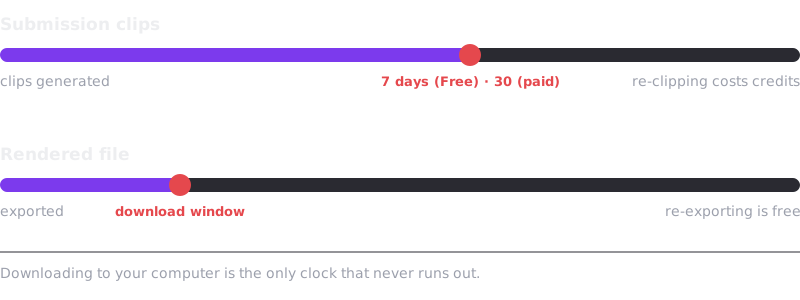
1. The rendered file expires. Once it's ready, the .mp4 stays available for a window that varies by plan, and is then deleted from storage. The render starts showing as Expired. This one is reversible: exporting again costs no credits.
2. The submission's clips expire. This one is more serious: 7 days on the free plan and 30 days on paid plans, counted from when the clips were generated. After that the whole submission expires: you can no longer open, edit or export those clips, and getting them back requires a new clipping job, which spends credits again.
Rule of thumb: whatever you want to keep, download it to your computer within the submission's window. A downloaded file is yours and never expires.
The deadline is stamped when the clips are born and doesn't change afterwards: a plan downgrade won't shorten the window on clips that already existed.
If the download fails
If a render shows as failed instead of finished, the problem is upstream of the download: see my render failed or is taking too long.